The control plane for your agentic research.
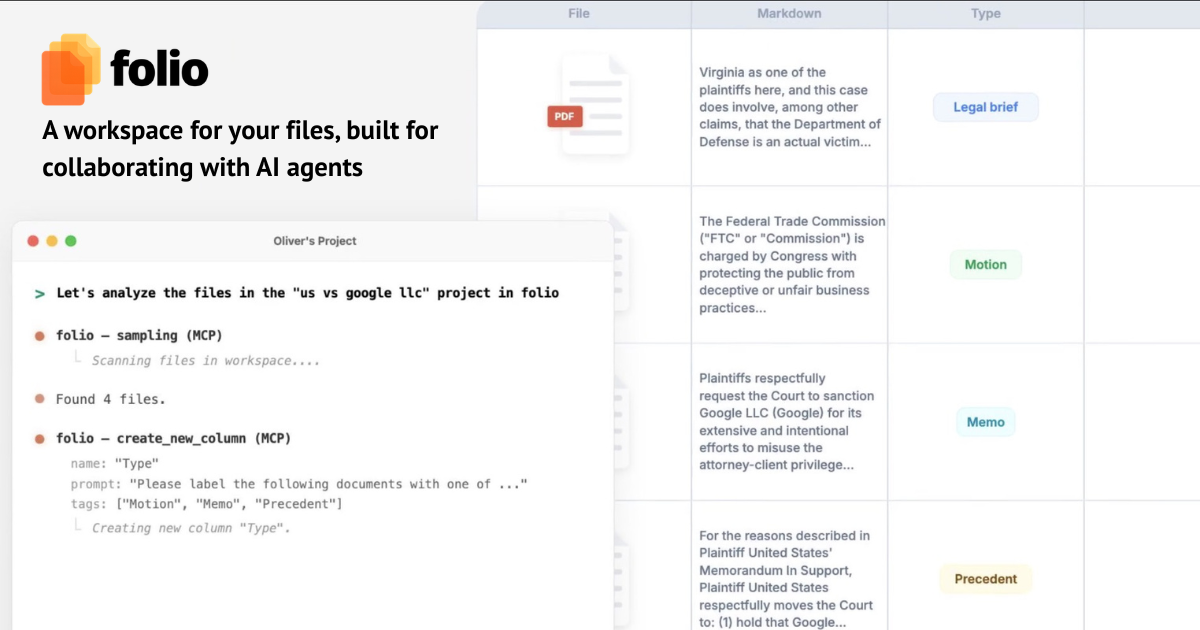
folio is a local file workspace for running deep analysis with AI agents. Label, summarize and extract structured from thousands of files using LLMs. Bring your own AI API keys. Keep your files private. Review results in a document-friendly UI, not a text-only terminal.
January 11, 2026
How it works
- Add your files to a folio project.
- Connect to Claude Code / Claude Desktop (see below) or use the built-in agent to give instructions.
- Tell your agent what you need: labels, extractions, summaries.
- Approve operations in the folio sidebar before they touch your data.
- Watch the results fill in row by row.
The workspace shows all your operations in one place, with an interface that allows you to easily review results across thousands of files.
What you can do
Label - tag hundreds of documents by type, jurisdiction, relevance.
Extract - pull dates, clauses, figures, names into structured columns across your entire corpus.
Summarize - condense each document into a sentence, a paragraph, a verdict.
Ask - pose a question to every document in the set. Get per-document answers you can sort and filter.
Built for scale
Handling jobs over thousands of files can be operationally complicated. That's why we built tools to help you easily oversee them.
Every job shows its progress: which documents are processing, which have completed, which have failed. Cost is estimated before you run anything. Total spend visible in the menu bar.
folio resembles a document processing pipeline, but is built for users who have never touched one.
You stay in control
The agent works in Claude Code / a sidebar. Every operation appears as a proposal: which files, which prompt, what it will cost. You can approve, modify, or reject before anything runs.
Browse results, adjust prompts and point the agent in the right direction.
folio is human-first by design, and it helps you intervene in the "reasoning" process. This is in stark difference to autonomous AI that disappears with your question and returns with an answer you can't verify.
Local and private
Your files are never stored remotely. Processing runs through your own AI API accounts and your own Modal account that we help you set up at startup. Nothing is tracked, nothing is stored remotely.
There is no need for an enterprise contract or even account creation with folio.
The vision
Backend data infrastructure is becoming a personal tool.
Knowledge workers now have access to more intelligence than they know what to do with. They need the same tools that technical teams used to direct that intelligence: pipelines, structured queries, batch operations. But those tools have to meet them where they are.
We are bringing the same tools to the users but in a much more accessible format, and helping them use these tools in collaboration with agents.
Getting Started
Download the folio app
To get started with the folio MCP server, you need to have the folio app installed. Once installed, opening a file in the app will automatically start the MCP server in the background.
Option 1: Connect to Claude Code
To connect to Claude Code, run the following command in either your terminal or the Claude Code extension depending on how you have it installed:
claude mcp add --scope local --transport http folio http://127.0.0.1:8765/mcp
Once connected, you should see the folio MCP server in the list of available MCPs when you run the /mcp command.
Option 2: Connect to Claude Desktop (unstable)
To connect to Claude Desktop:
- Open the app and navigate to Settings > Developer > Edit Config.
- Open the config in a text editor.
- Copy/paste this
folioobject under your existing"mcpServers"section:
"folio": {
  "command": "npx",
  "args": ["mcp-remote", "http://127.0.0.1:8765/mcp"]
}
Your full config should keep preferences and mcpServers in the same top-level object, for example:
{
  "preferences": {
    "localAgentModeTrustedFolders": [
      "/Users/{user_name}/workspace"
    ],
    "coworkScheduledTasksEnabled": true,
    "ccdScheduledTasksEnabled": true,
    "sidebarMode": "task",
    "coworkWebSearchEnabled": true
  },
  "mcpServers": {
    "folio": {
      "command": "npx",
      "args": ["mcp-remote", "http://127.0.0.1:8765/mcp"]
    }
  }
}
- Restart Claude Desktop.