

Porting apps
Virtually any application or CLI tool that reads and writes files on a filesystem can be ported to Folio. Once attached to Folio's shared drive, local and open-source tools become cloud-backed web apps by default: every file they write is persisted in the cloud, versioned, branch-aware, and immediately shared across your team and agents, without building storage pipelines, databases, or job queues.
Example: Package any CLI tool as a web app
Most developer and creative workflows already rely on CLI tools (ffmpeg, blender, pandoc, imagemagick, qmd) that take input files, run compute, and write output files to disk.
On a laptop, you run the tool by hand against local files:
ffmpeg -y -i ./raw.mp4 -vf scale=1280:-2 ./preview.mp4Porting that CLI into a multi-user cloud web app on Folio does not require rewriting the tool or building a backend server. You wrap it in three small pieces:
1. Declare the tool as a job in manifest.json
Declare the frontend entrypoint, the Python worker, the folders the app can touch, and each CLI command as a job with its inputs and outputs:
{
  "format": "planar.application/mini-v1",
  "id": "video-preview",
  "name": "Video Preview",
  "version": "1.0.0",
  "runtime": {
    "frontend": "index.html",
    "worker": "backend/worker.py",
    "parametersContract": "backend-parameters.json"
  },
  "filesystem": [
    { "mount": "/projects", "source": "WORKSPACE_SLOT", "path": "/projects", "mode": "read_only" }
  ],
  "jobs": [
    {
      "id": "video.preview",
      "handler": "backend/transcode.py:transcode",
      "inputs": [{ "name": "clip", "mount": "/projects", "required": true }],
      "outputs": [{ "name": "preview", "filename": "preview.mp4", "mediaType": "video/mp4" }],
      "outputMount": "/projects",
      "outputLayout": "bound_path",
      "outputPathParameter": "outputPath",
      "timeoutSeconds": 600
    }
  ]
}
2. Wrap the CLI in a worker handler
Register the handler in backend/worker.py with planar_workspace.run, then invoke the CLI as a normal subprocess. Folio downloads each pinned input to a local path (job.inputs[...].path), gives you a temporary job.scratch directory, and publishes whatever file the CLI writes straight back to the shared drive as a new version on the active branch:
# backend/worker.py
import planar_workspace
import transcode

if __name__ == '__main__':
planar_workspace.run({'video.preview': transcode.transcode})# backend/transcode.py
import subprocess
import planar_workspace
def transcode(job: planar_workspace.Job) -> None:
out_file = job.scratch / 'preview.mp4'
subprocess.run(
['ffmpeg', '-y', '-i', str(job.inputs['clip'].path), '-vf', 'scale=1280:-2', str(out_file)],
check=True,
)
job.outputs['preview'].publish(out_file, pin=True)For tools that need to walk or write directly into a workspace folder tree (such as Blender rendering a multi-file scene), set "mountWorkspace": true in runtime, let the CLI write into the mounted workspace, and call job.outputs[...].adopt(sha256, pin=True) so Folio records and pins the file it wrote.
3. Put a thin browser UI in front of it
In the frontend, trigger the CLI through jobs.submit and follow its live status with useJob. Because Folio handles execution in the background, the CLI keeps running even if the user closes the tab, and the output file appears live in every browser and mounted folder as soon as publish completes:
import { jobs } from '@planar/frontend-sdk/browser';
import { useJob } from '@planar/frontend-sdk/react';

const job = await jobs.submit('video.preview', { outputPath }, { clip: clipPath });
// Render live progress, completion, or errors with useJob(job.jobId)
Example: Porting a stateful CLI and local daemon (qmd)
More complex tools keep a local database or search index and expect a background server. For example, you can bring a local CLI search tool like qmd into Folio and build a team search app on top of it:
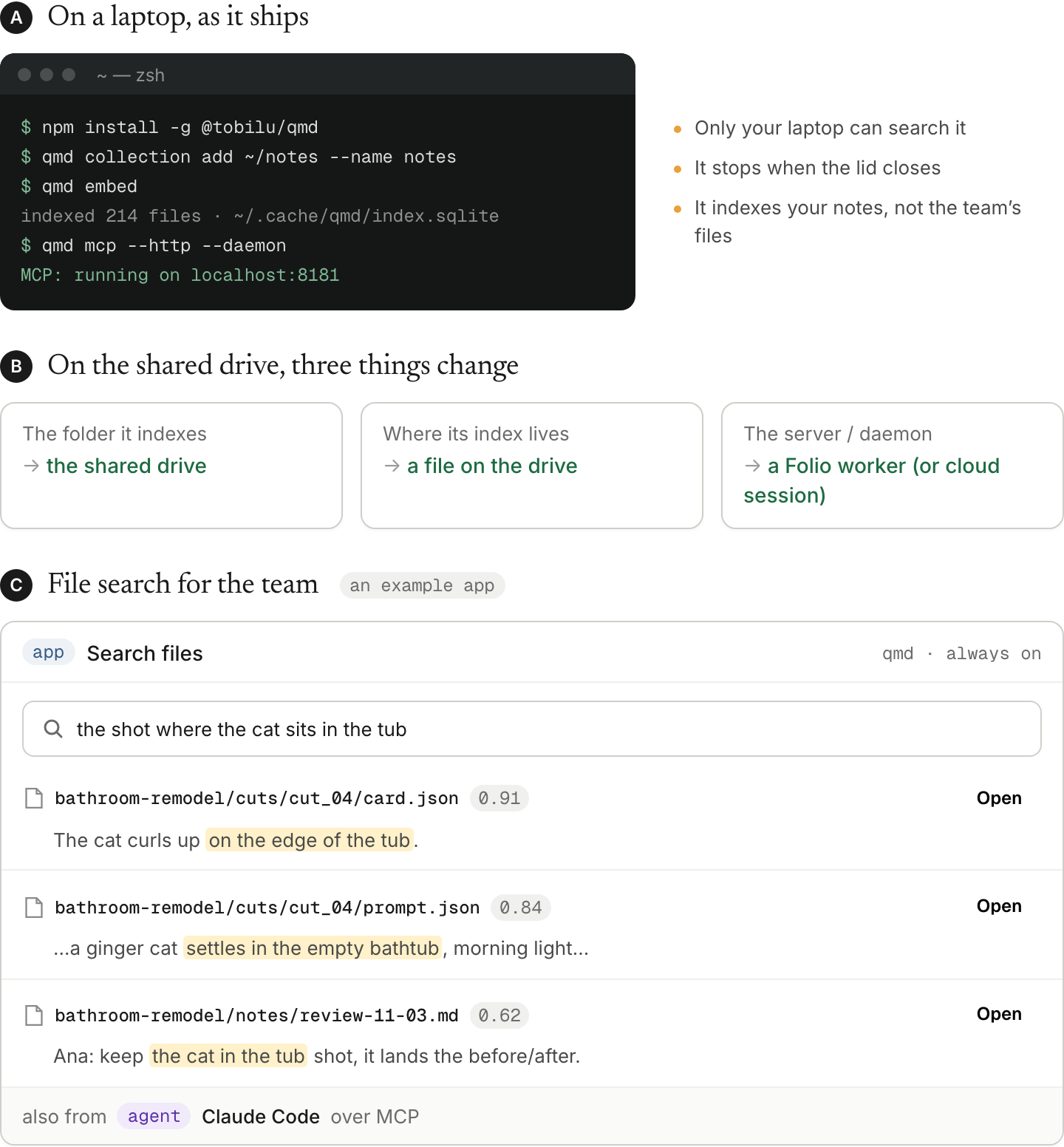
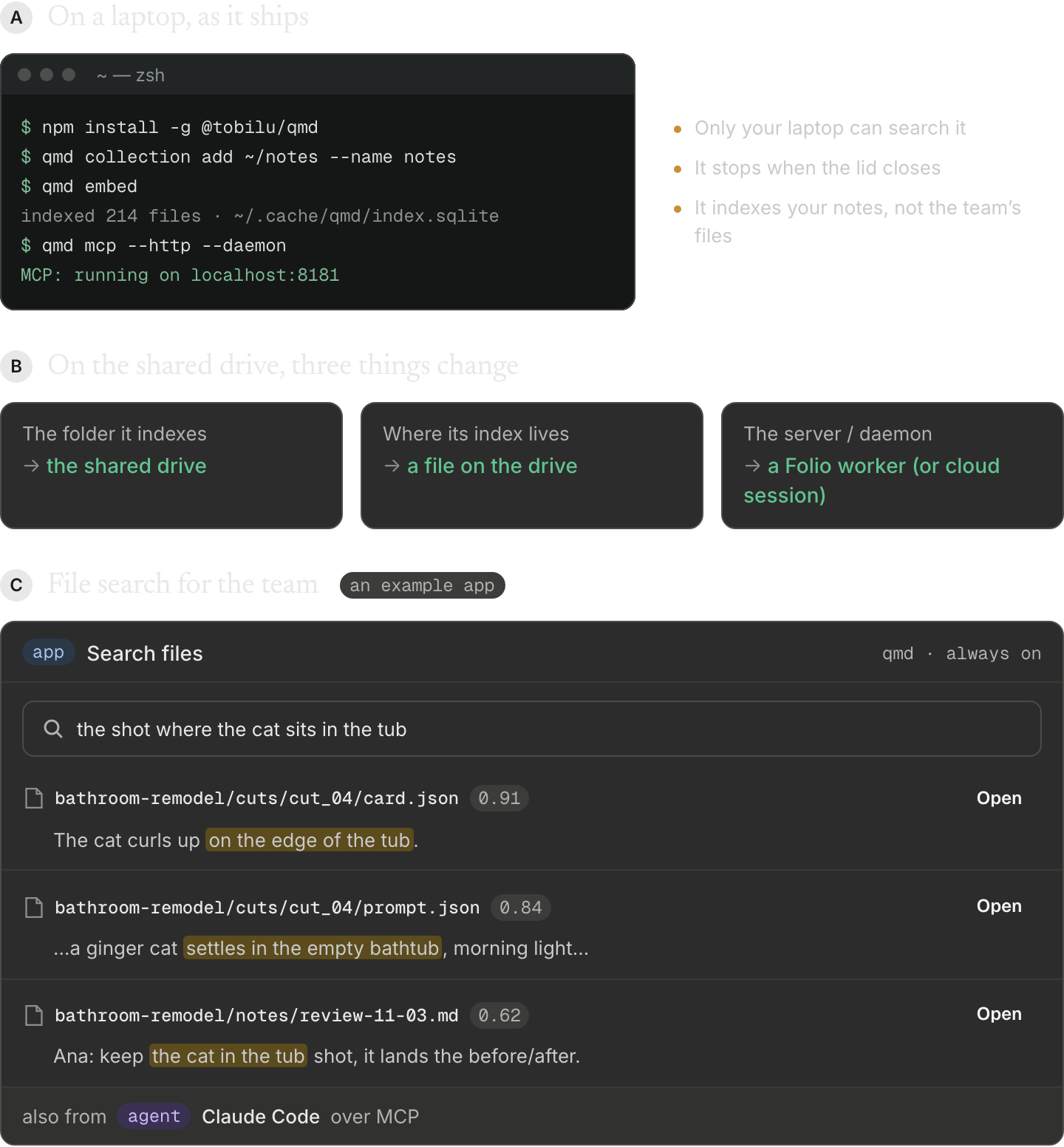
Every part of a stateful tool maps cleanly onto Folio:
- Files live on the shared drive: Instead of indexing a private folder on one laptop, the tool reads and writes workspace folders. Every save is automatically synced and versioned in the cloud.
- Databases become files on the drive: Even if an app relies on a database or local search index (like
index.sqliteforqmdor/app/sketch.dbin Example: Sketch), the database file itself is stored as a regular file on the drive inside/appor a shared folder. Browser apps can run SQLite in WebAssembly (sql.js) and write a whole-file snapshot on save (no WAL sidecars). Note that concurrent multi-writer database edits produce separate file versions rather than row-level merges, so this model fits app state, edit logs, and search indexes best. - Servers and daemons become workers (or a cloud session): Instead of deploying and managing a separate backend server, patch discrete server operations (such as re-indexing or running a search job) into a Folio worker following the conventions above (
runtime.worker,jobs,parametersContract, andruntime.envfor secret names). When a tool genuinely requires a long-running local daemon or MCP endpoint (likeqmd mcp --http --daemon), it can run inside a workspace cloud session attached to the mounted drive.
Migration checklist
- Map inputs, outputs, and state: Identify which workspace folders the tool reads and writes, and put any private database or cache file under
/app. - Write
manifest.json: Declareruntime.frontend,runtime.worker,filesystemordomaingrants,launchLocations,jobs, and any secret names inruntime.env. See The manifest. - Wrap compute in
planar_workspace.run: Call your CLI or server logic from the worker handler and publish its output files withpublish(..., pin=True)(oradopt(..., pin=True)withmountWorkspace: true). - Build the UI and register: Wire the frontend to
@planar/frontend-sdk(useFile,useContent,jobs.submit,useJob) and register the app in your workspace.
For a complete working reference app that combines shared files, version history, a SQLite database in /app, and a Python background worker, see Example: Sketch.