

File versions
In Folio, you can create a file inside an app, have an agent iterate on it on a branch, tweak it in another app, accept changes from teammates, and jump back to any earlier version whenever you want.
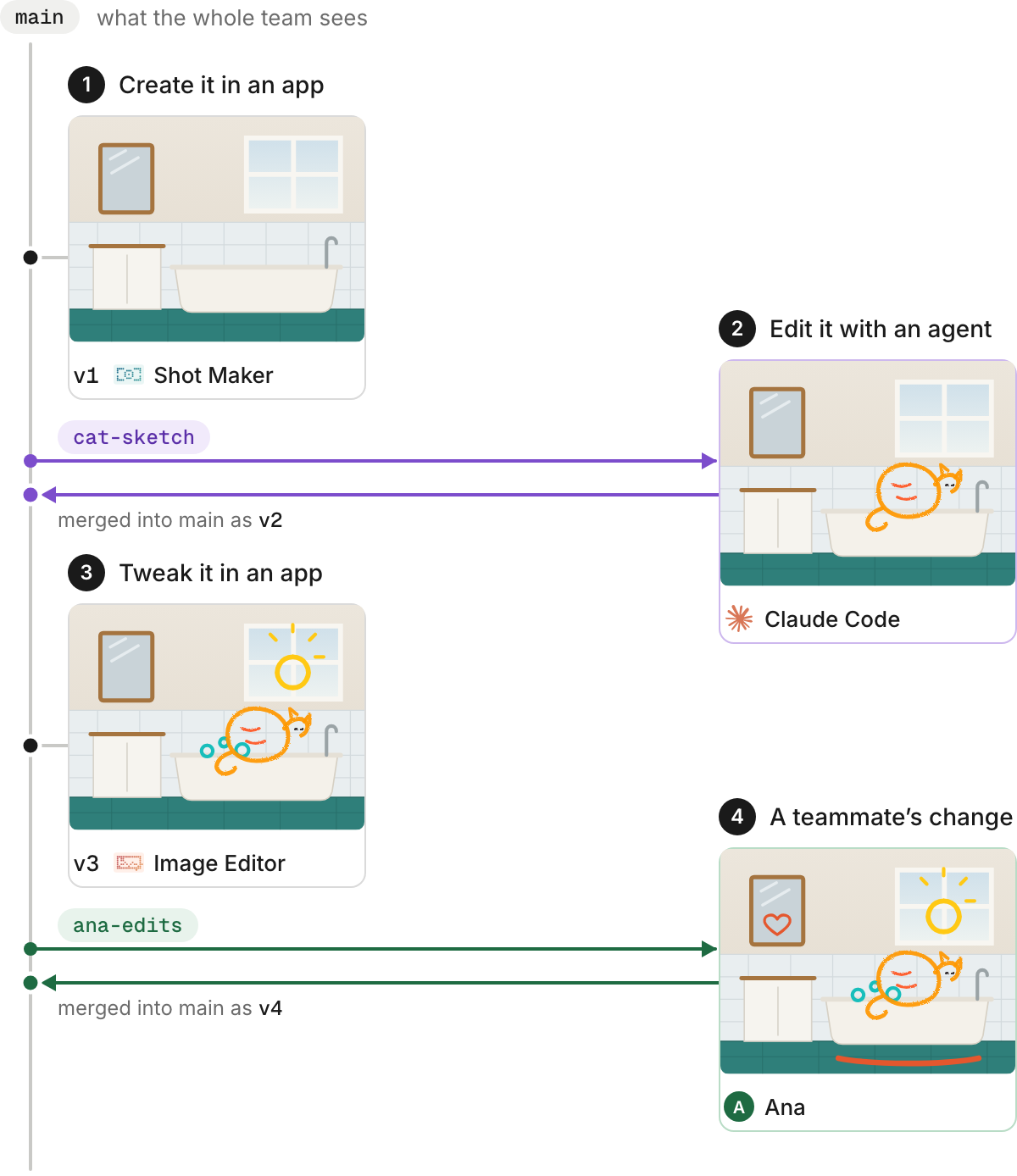
A file's history
Every time a file is saved, Folio records a new immutable version of it. Earlier versions are never overwritten or deleted.
One version is selected as current (also called the pinned version) on a branch. The current version is what the File Browser, apps, mounts, and jobs read by default.
Each row in the version list shows what produced it and who made it:
- Manual upload · <name> is a save made under a person's account (through the File Browser, an app, or a mounted folder).
- A version created by an app job is named for the operation, such as Generate · <name>.
- When an edit started from an older version rather than the version right before it, the row also notes its starting point (for example, from v1).
Clicking or downloading an earlier version is read-only and changes nothing for anyone else. Clicking Restore as current moves the current pointer back to that version without deleting newer versions or copying the file's bytes. All later versions remain in history, so you can switch forward again at any time.
Concurrent saves on the same branch
If two people or apps open the same version of a file on main and both save, neither save fails and neither overwrites the other. Both saves become versions in the file's history (for example, v5 and v6), each recording which version it started from. The latest save becomes current, and the other remains one click away in the version list.
Versions on branches
A file shares one sequence of version numbers across every branch. When a branch saves a file, it claims the next number for that file, and no other branch can reuse it. A branch can be working on v3 and v4 while main is still on v1, and v2 may belong to a different branch.
On main, a file's history includes versions saved on other branches, each labeled with its branch. You can cherry-pick a single version onto main without merging the whole branch:
- Restore as current appears for versions that were previously on
main. - Make current appears for versions from another branch that
mainhas never selected before.
For how computer mounts and agent sessions decide whether new saves automatically become current, see Pinning versions on mounts and sessions.
Scope, renames, deletes, and storage
- Versions are per file, not per folder. Restoring an older version of one file (such as
scene.blend) does not roll back sibling textures or exported companion files in the same folder. For multi-file changes, use branch merging and Undo in Merging and review. - Renaming keeps history. Renaming or moving a file preserves its full version list. Renaming a file onto an existing file of the same type adds a new version to the destination file, labeled Moved from <name>.
- Deleting keeps history (no Trash view yet). Deleting a file removes it from the folder, while its versions stay intact behind the scenes. Creating a new file at that same path later continues its version numbering. Folio does not have a Trash view for browsing deleted files yet.
- Permanent versions and storage. Versions cannot be manually deleted or purged today. Restoring an older version or saving identical bytes does not store a duplicate copy (Folio deduplicates identical file content within a workspace), while each distinct edit keeps its full bytes so history stays non-destructive.
For app builders
Apps read and write the same version history through the frontend SDK (see the SDK reference for full details):
useFileHistory(path)watches a file's versions, including version numbers, timestamps, current status, and origin.fs.readRevision(path, fileRevisionId)reads an earlier version without changing the current version.fs.restoreVersion(path, fileRevisionId)makes an earlier version current.fs.writeFile(path, bytes, mediaType, {basedOn})appends a new version and makes it current, recordingbasedOnas the version the edit started from.