
FolioFolioDocs

Quickstart

This walkthrough starts with an empty workspace and ends with your first app. On the way you add a few files, start an agent in a terminal, and see its result come back as a file.

1. Open your workspace

Your workspace has its own address: https://folio-<name>.fly.dev, with the name you chose at sign-up. Open it in your browser and add a bookmark.
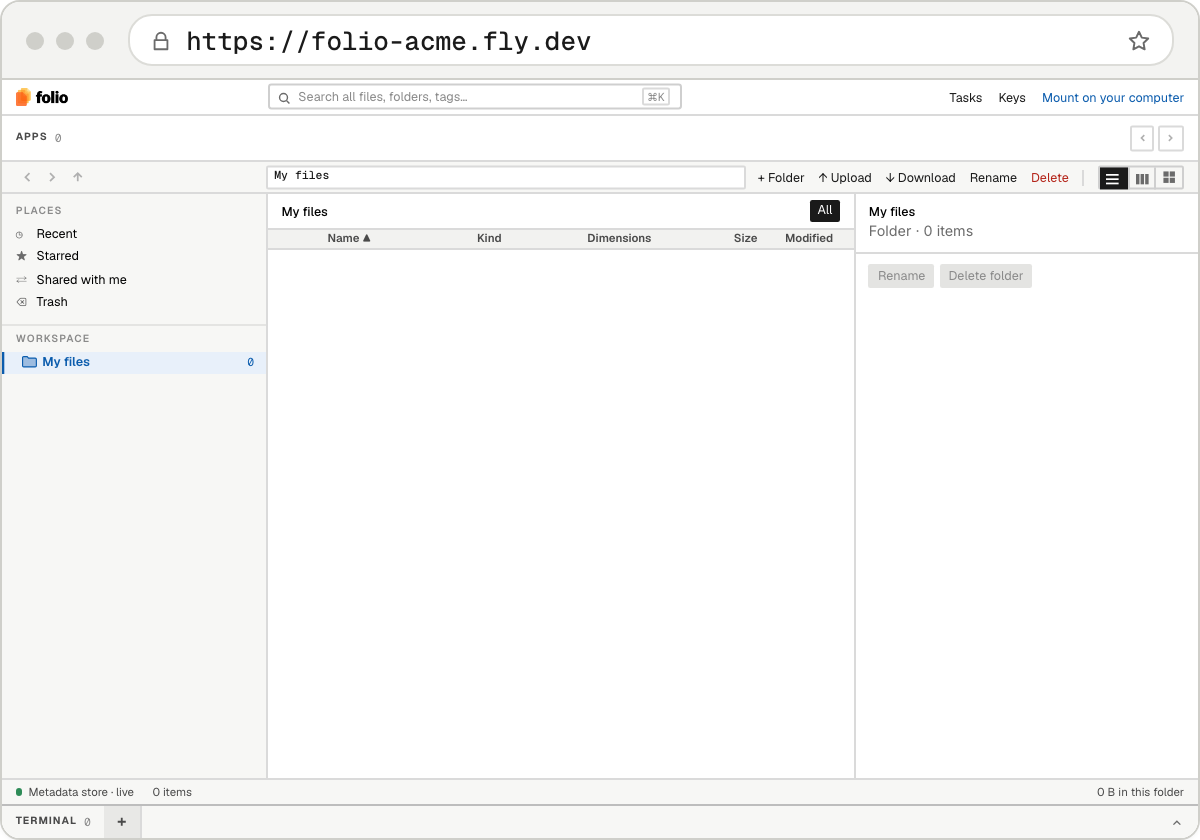
A browser window at the address https://folio-acme.fly.dev with a new Folio workspace in it. The title bar has the search field, Tasks, Keys and Mount on your computer. The apps row is empty, the folder My files has no files, and the terminal bar is at the bottomA browser window at the address https://folio-acme.fly.dev with a new Folio workspace in it. The title bar has the search field, Tasks, Keys and Mount on your computer. The apps row is empty, the folder My files has no files, and the terminal bar is at the bottom

If you lose the address, sign in at core.usefolio.ai. Folio sends you to your workspace.

2. Add your files

Press + Folder and make a folder named projects. Open it and make a folder for your first project, for example bath-remodel. Open that folder and drag a few PNG pictures from your computer into the window.
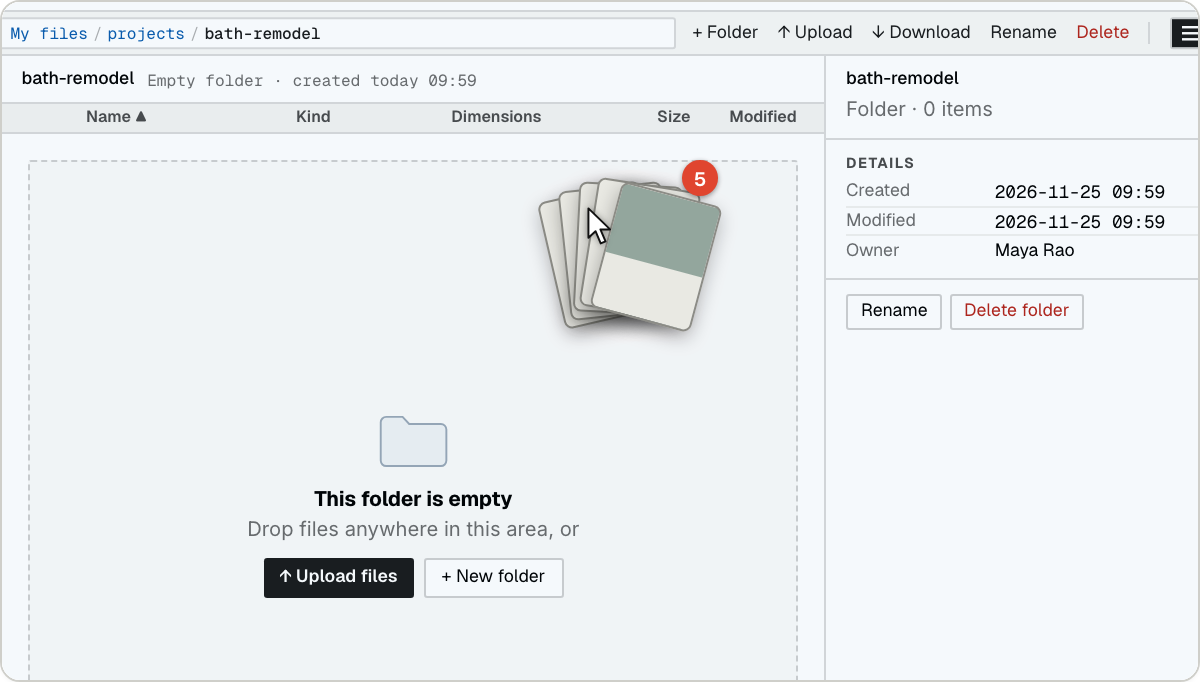
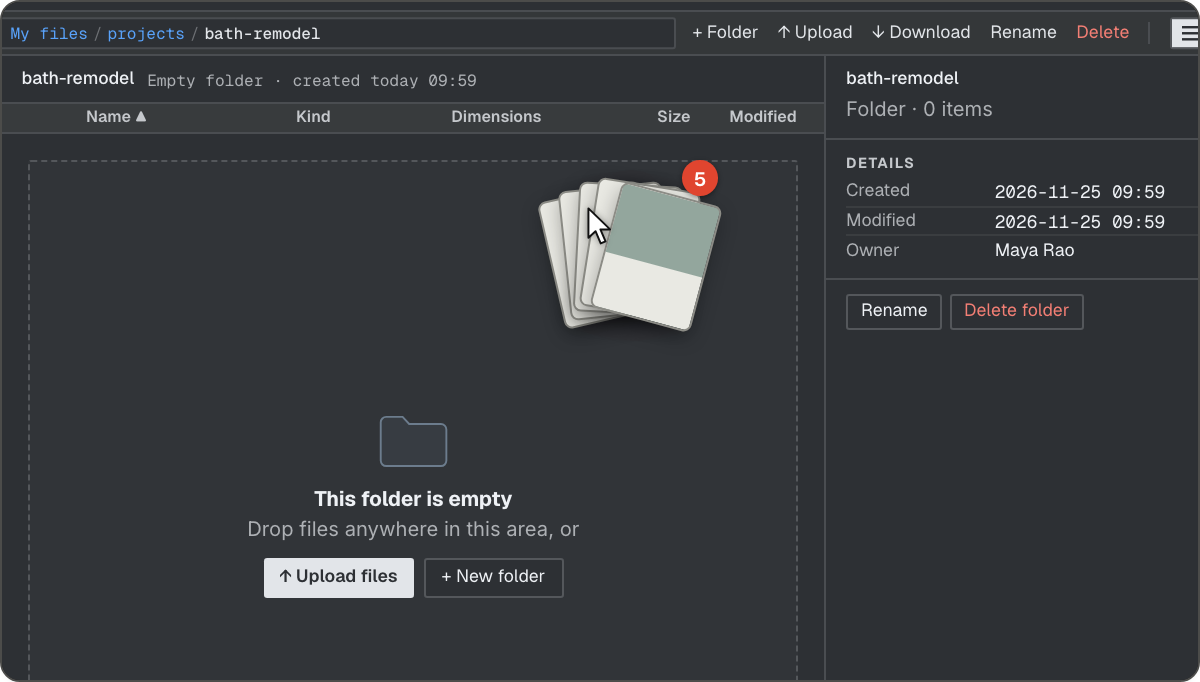
The empty folder bath-remodel in the File Browser, with the text "This folder is empty. Drop files anywhere in this area". A pointer drags five files over itThe empty folder bath-remodel in the File Browser, with the text "This folder is empty. Drop files anywhere in this area". A pointer drags five files over it

Folio keeps every version of each file from now on.

3. Start a session

A session is a terminal on your workspace's cloud machine. An agent runs in it and works on your files in place.

The terminal bar is at the bottom of the window. Press the + button (New session).
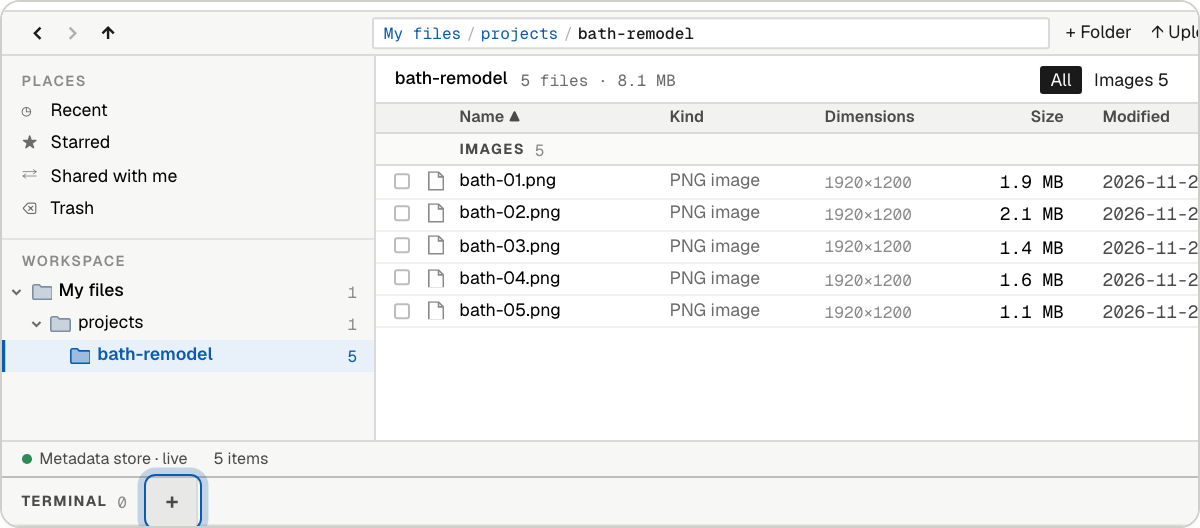
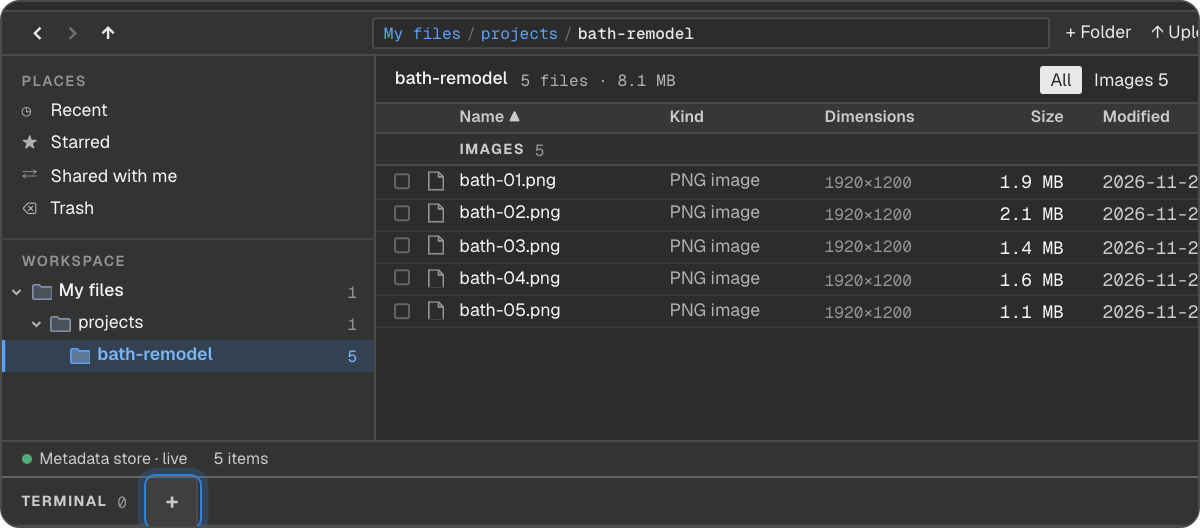
The folder bath-remodel with five pictures, bath-01.png to bath-05.png. Under the list is the terminal bar, with a ring round its + buttonThe folder bath-remodel with five pictures, bath-01.png to bath-05.png. Under the list is the terminal bar, with a ring round its + button

In Start agent session, pick Claude Code. Keep New branch from main and name the branch, for example first-session. Then press Start session.
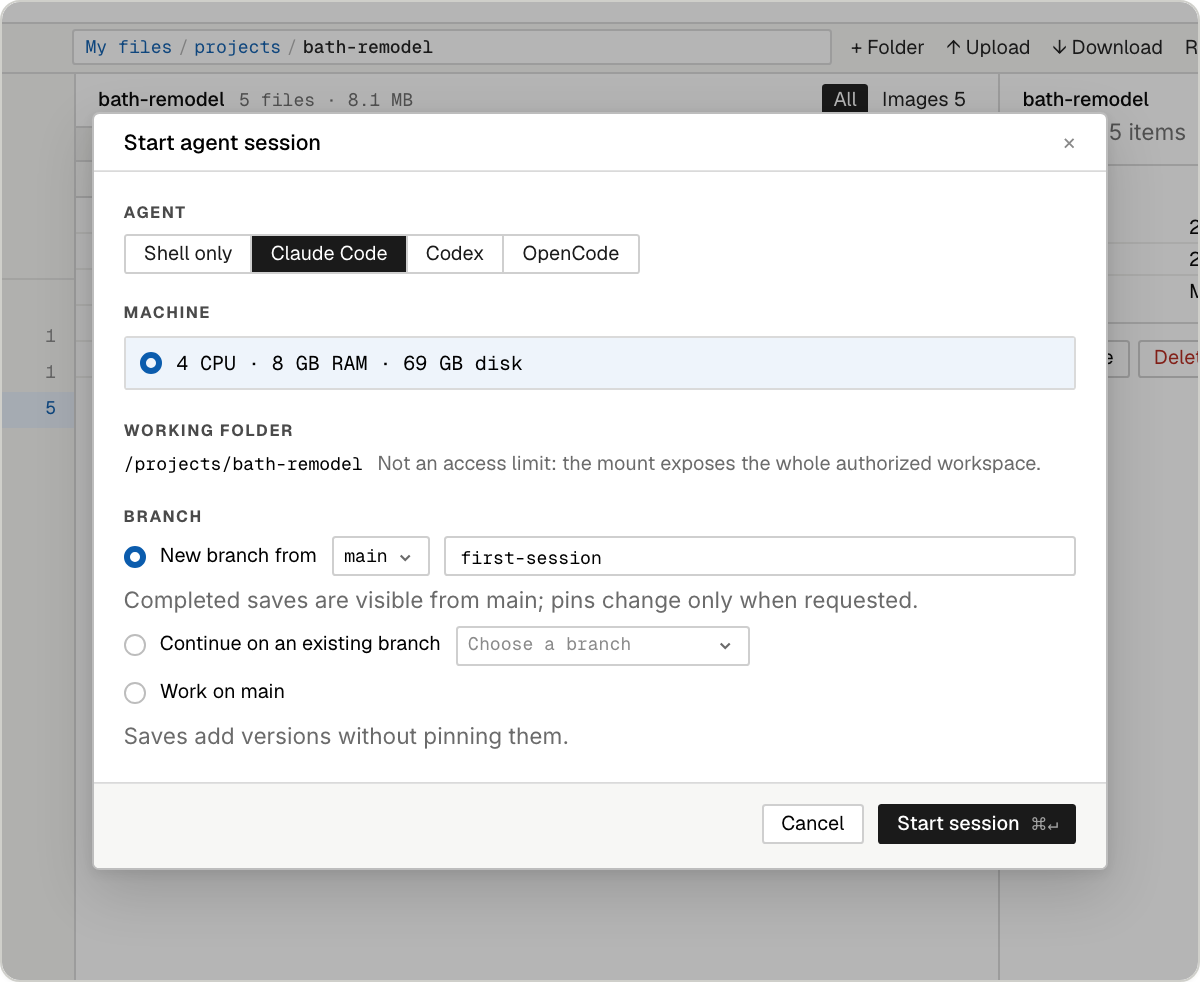
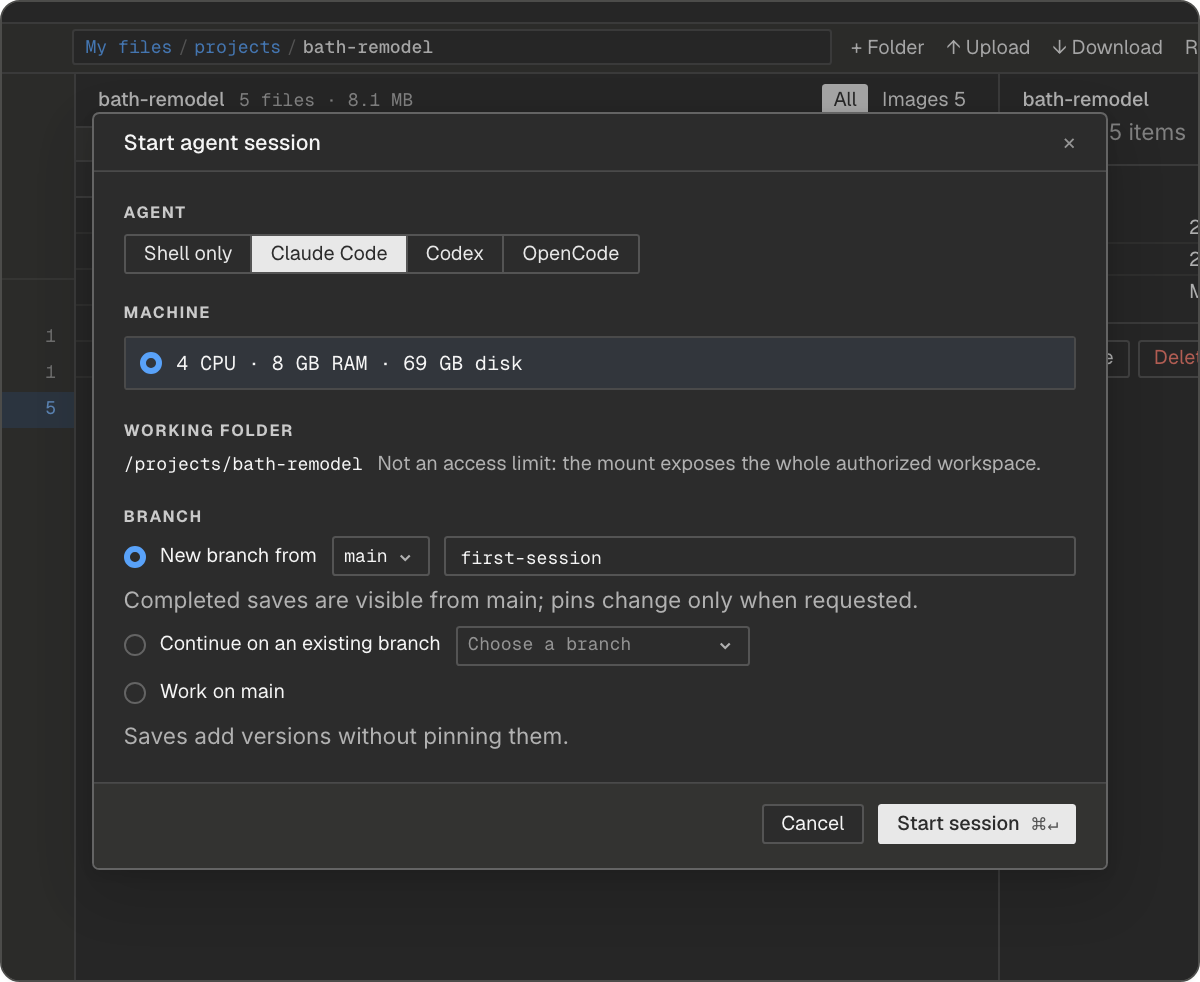
The Start agent session dialog. Agent: Claude Code. Machine: 4 CPU, 8 GB RAM, 69 GB disk. Working folder: /projects/bath-remodel. Branch: a new branch from main, named first-session. The buttons are Cancel and Start sessionThe Start agent session dialog. Agent: Claude Code. Machine: 4 CPU, 8 GB RAM, 69 GB disk. Working folder: /projects/bath-remodel. Branch: a new branch from main, named first-session. The buttons are Cancel and Start session

The machine wakes, which usually takes about 30 seconds. Then the terminal opens with Claude Code in your project folder, and the File Browser changes to the session's branch.
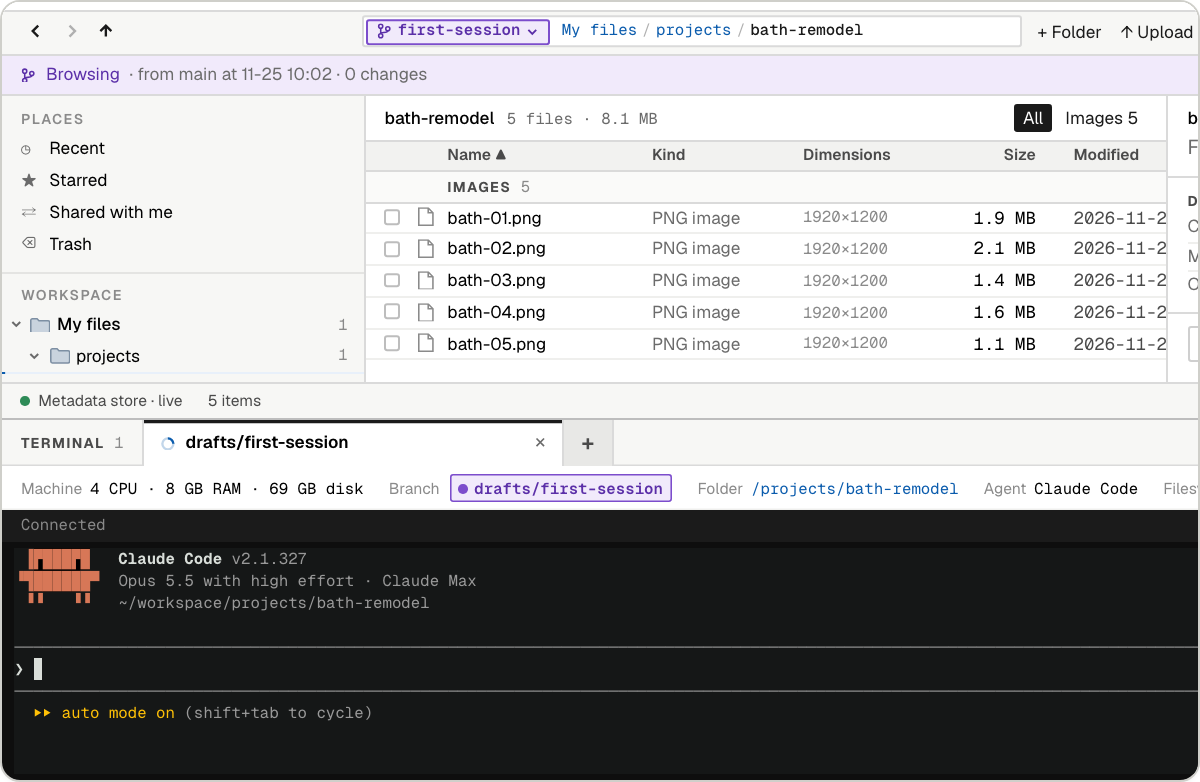
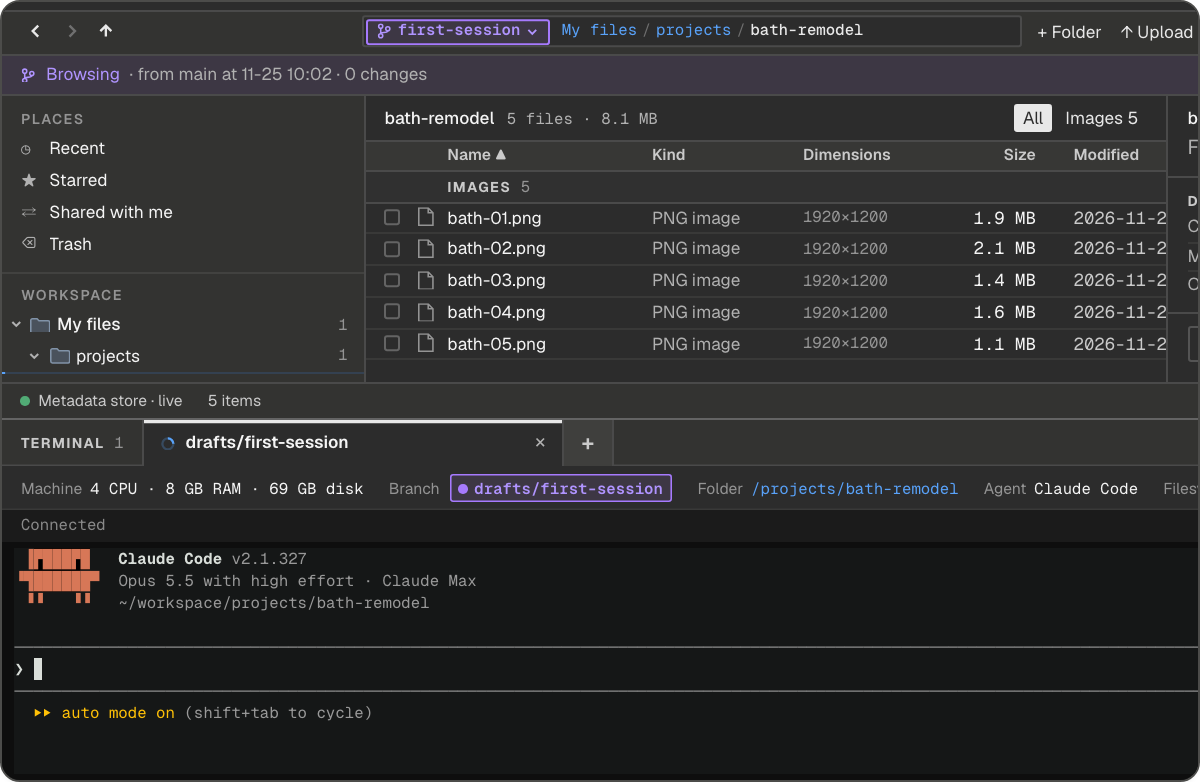
The File Browser on the branch first-session, with the five pictures. Under it the terminal panel has one tab, drafts/first-session, a bar with the machine, the branch, the folder and the agent, and Claude Code's first screenThe File Browser on the branch first-session, with the five pictures. Under it the terminal panel has one tab, drafts/first-session, a bar with the machine, the branch, the folder and the agent, and Claude Code's first screen

If Claude Code asks you to sign in, follow its steps in the terminal. To use an API key instead, add it under Keys before you start the session (see Keys).

You can close the browser tab at any time. The session keeps running.

4. Ask for something

Type what you want in plain words. For example:

Make a contact sheet of these pictures.
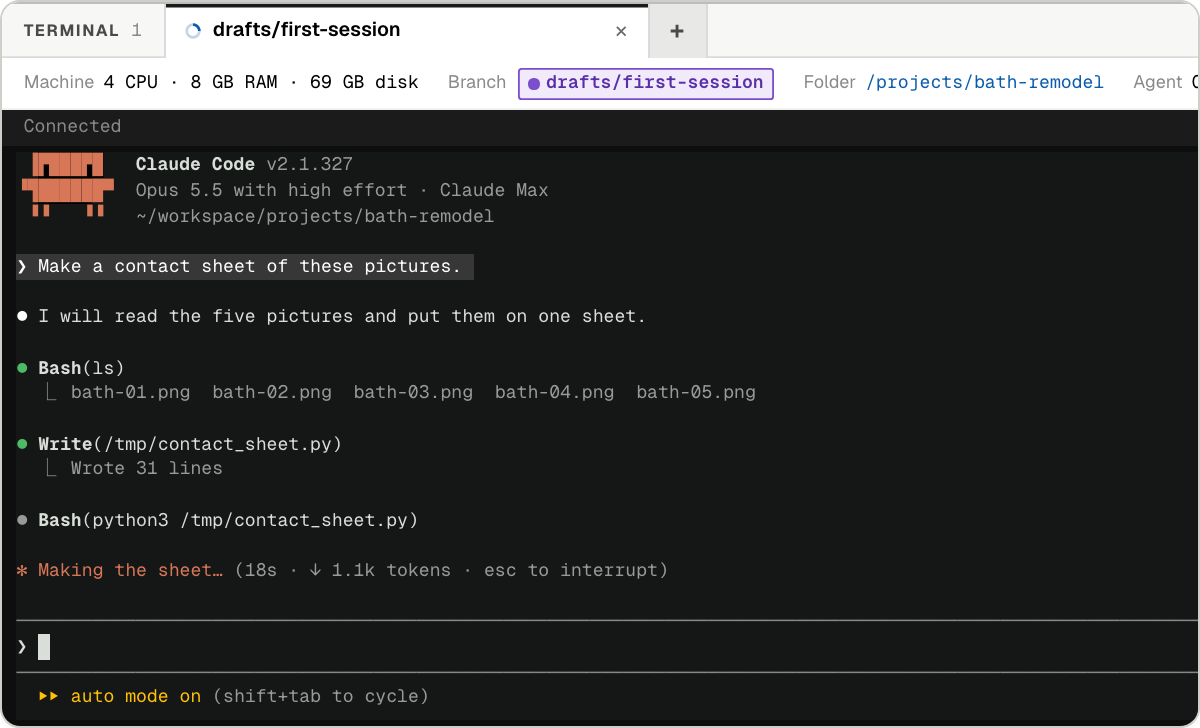
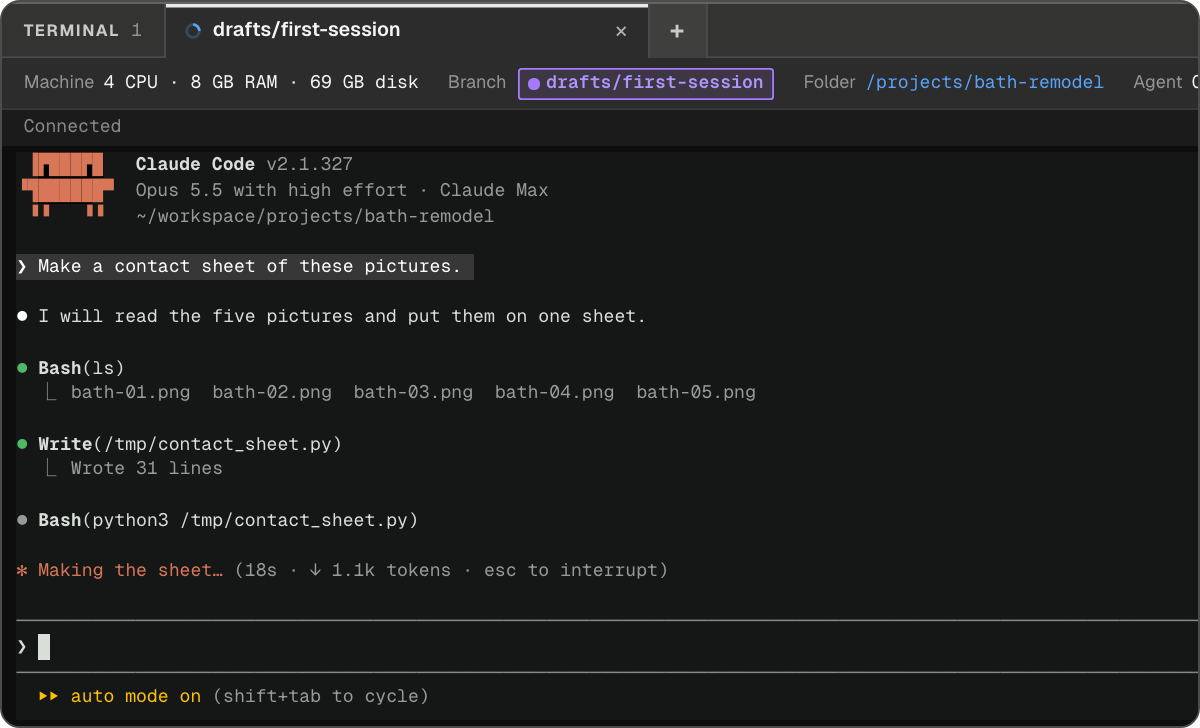
The terminal with the message "Make a contact sheet of these pictures." Claude Code lists the five pictures, writes a script in /tmp and runs itThe terminal with the message "Make a contact sheet of these pictures." Claude Code lists the five pictures, writes a script in /tmp and runs it

The agent reads the files in your folder and runs its tools on the cloud machine.

5. See the result in your files

When the agent saves a file, the File Browser shows it a few seconds later. You do not need to reload the page.
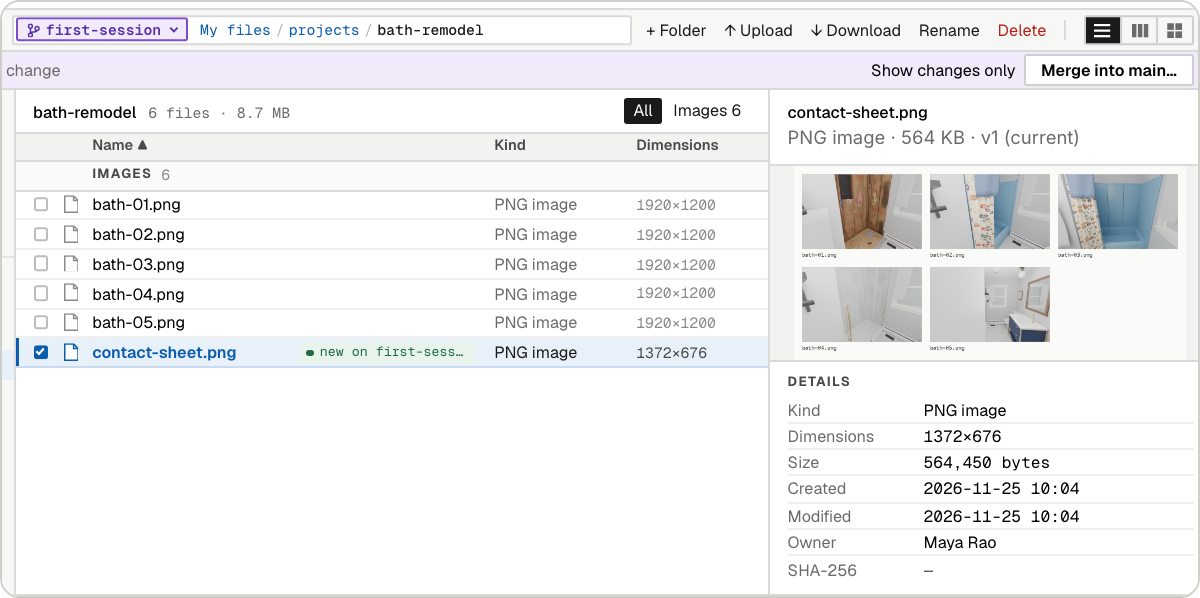
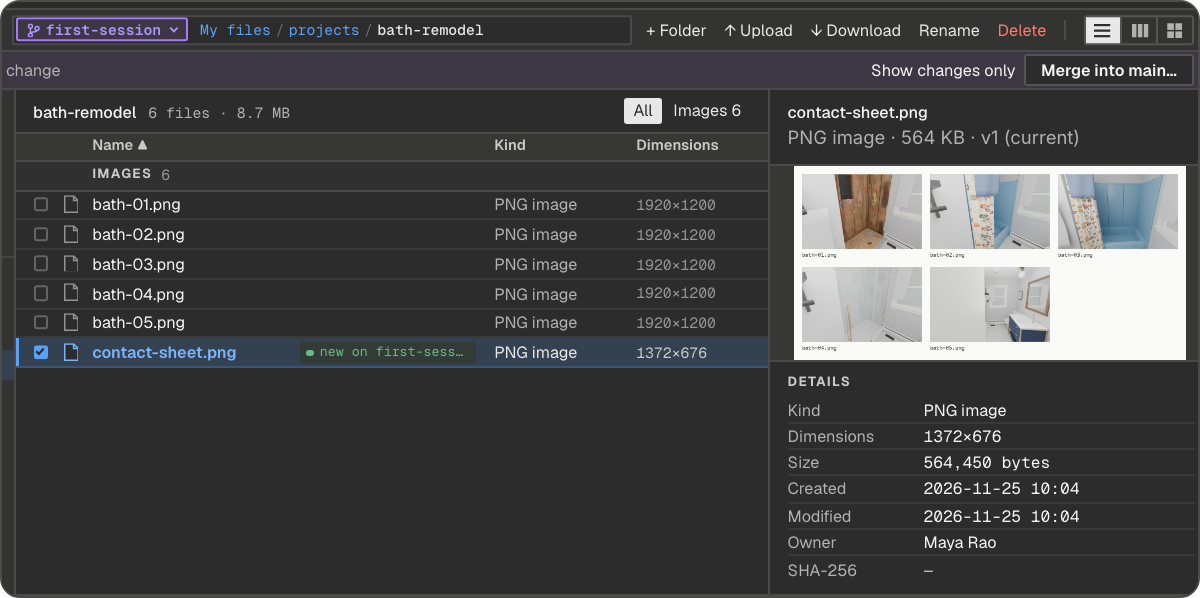
The list of bath-remodel on the branch first-session with a sixth file, contact-sheet.png, marked "new on first-session". The file is selected: the inspector shows the contact sheet, its details and version 1. The bar of the branch has the button Merge into mainThe list of bath-remodel on the branch first-session with a sixth file, contact-sheet.png, marked "new on first-session". The file is selected: the inspector shows the contact sheet, its details and version 1. The bar of the branch has the button Merge into main

The new file has the mark new on first-session: the session saves on its own branch, and main does not change. Select the file to see its preview and its versions. When you want the result on main, press Merge into main… (see Merging and review).

6. Make your first app

A new workspace has no apps. Ask the same session for one:

Build me an app that shows a project's pictures as a contact sheet.

The cloud machine has Folio's app kit, so the agent knows how to build an app and how to register it in your workspace.
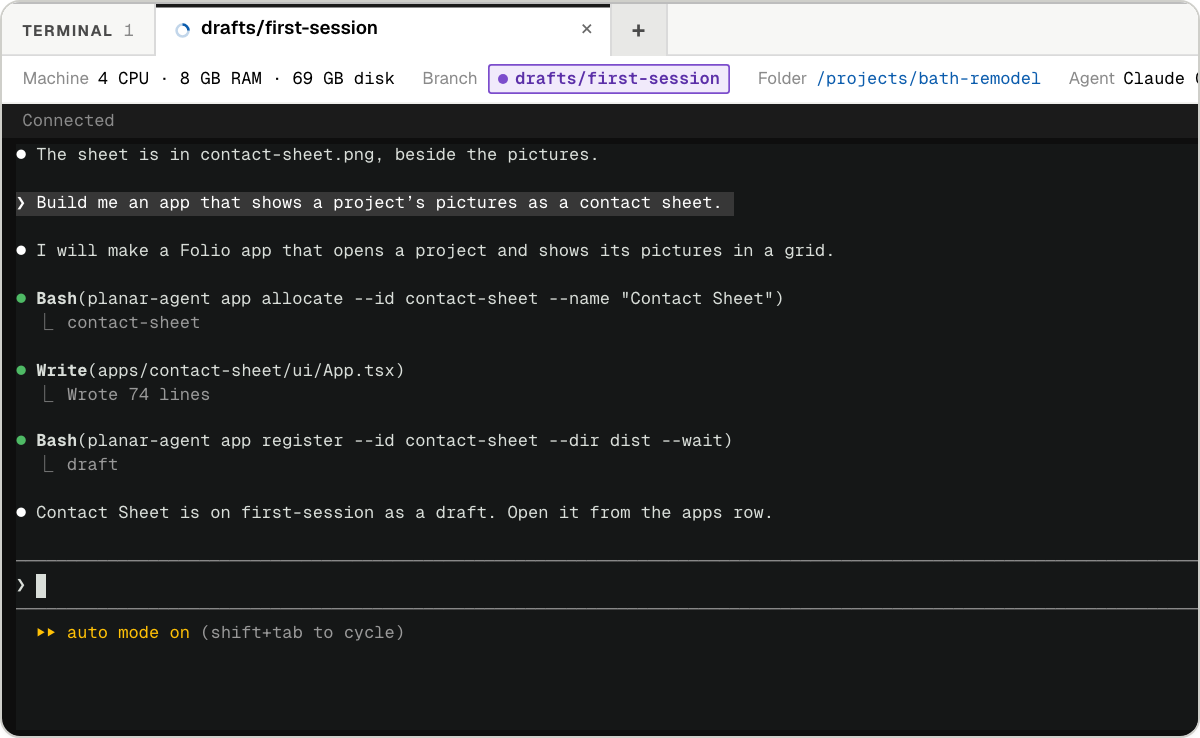
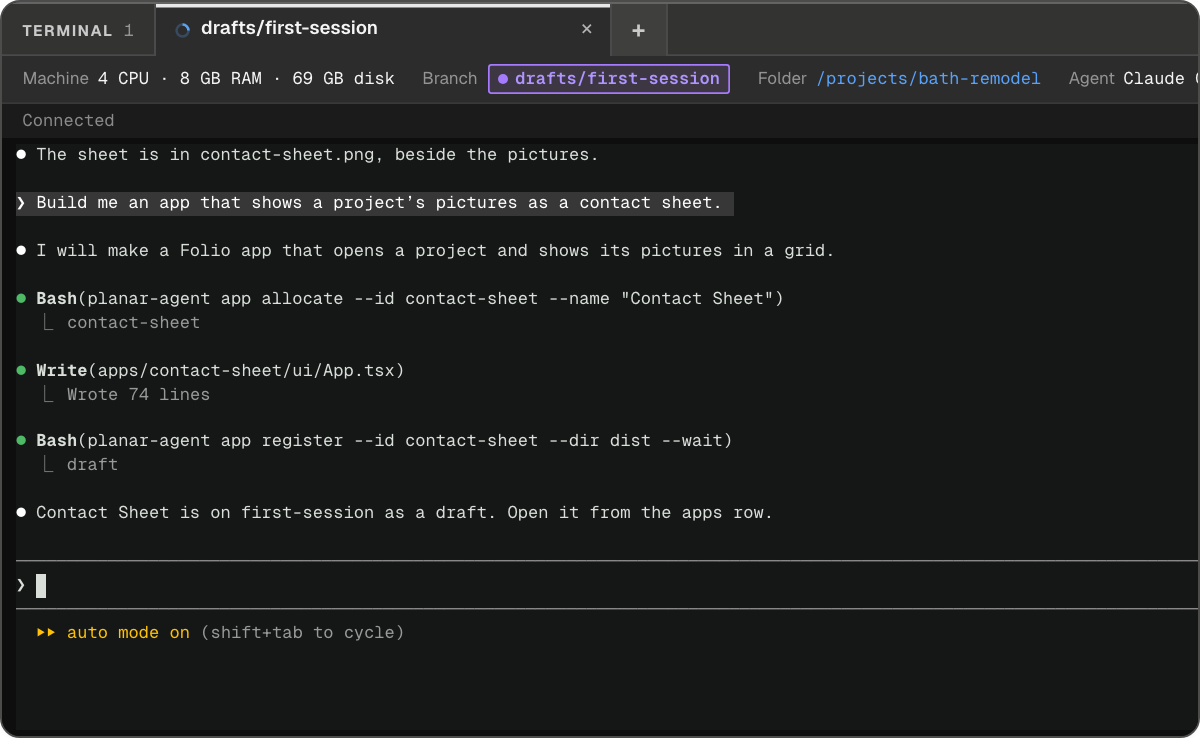
The terminal with the message "Build me an app that shows a project's pictures as a contact sheet." Claude Code gets an id for the app, writes its code and registers it. Its last line: Contact Sheet is on first-session as a draftThe terminal with the message "Build me an app that shows a project's pictures as a contact sheet." Claude Code gets an id for the app, writes its code and registers it. Its last line: Contact Sheet is on first-session as a draft

When the agent registers the app, it appears in the APPS row at the top of the window, with the note Draft. A draft runs on the session's branch only.
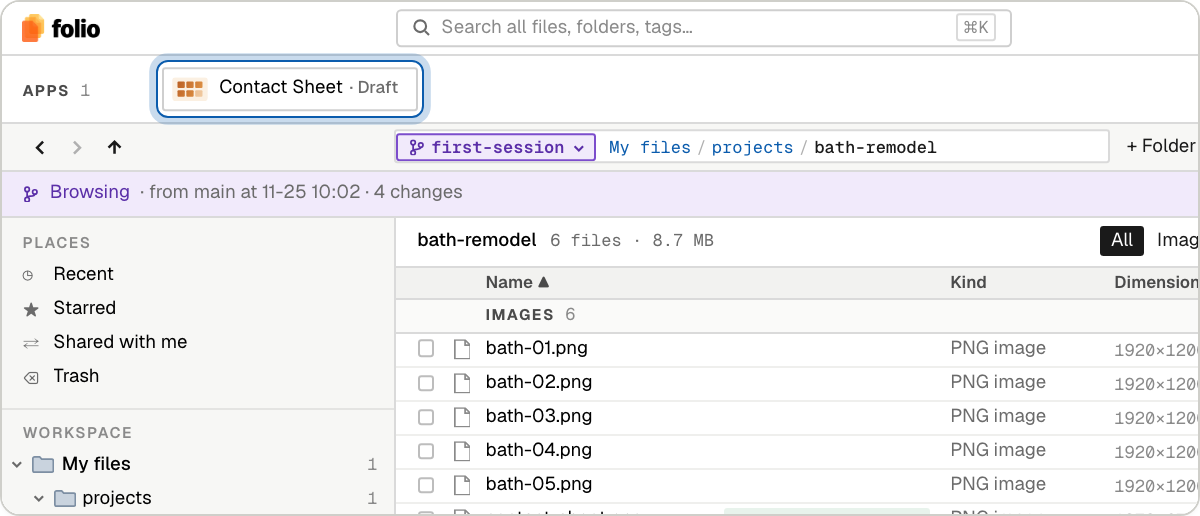
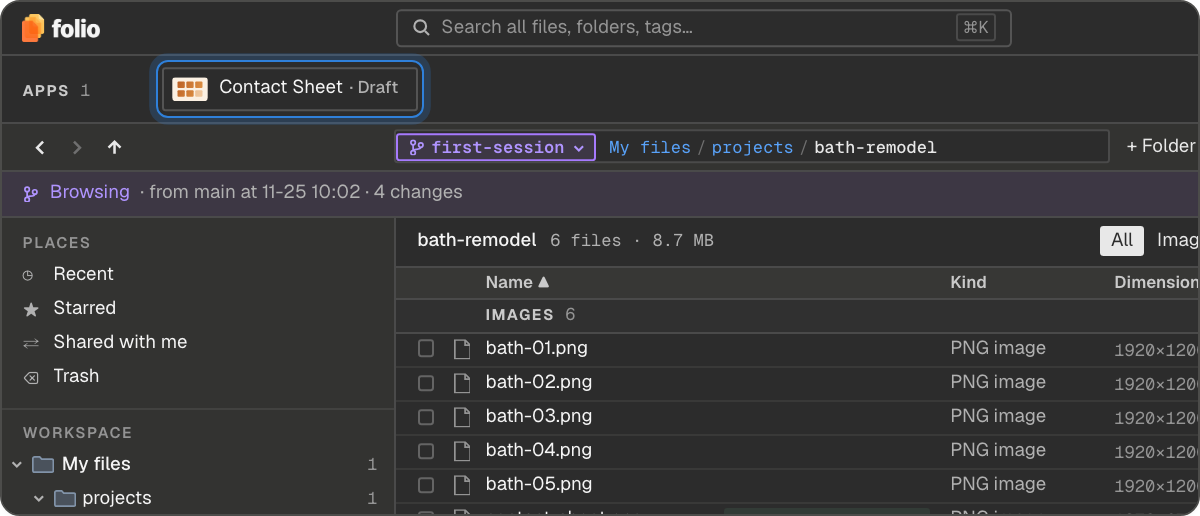
The top of the window on the branch first-session. The apps row has one app, Contact Sheet, with the note Draft and a ring round itThe top of the window on the branch first-session. The apps row has one app, Contact Sheet, with the note Draft and a ring round it

Click the app to open it on your project.
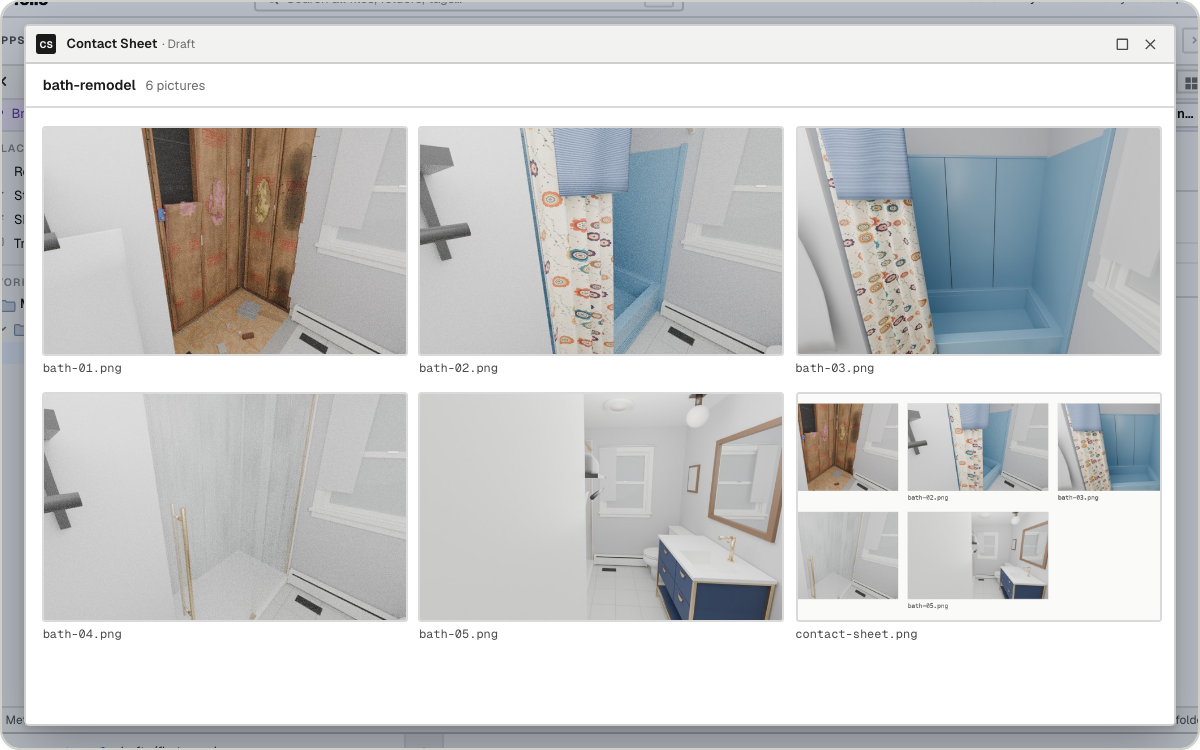
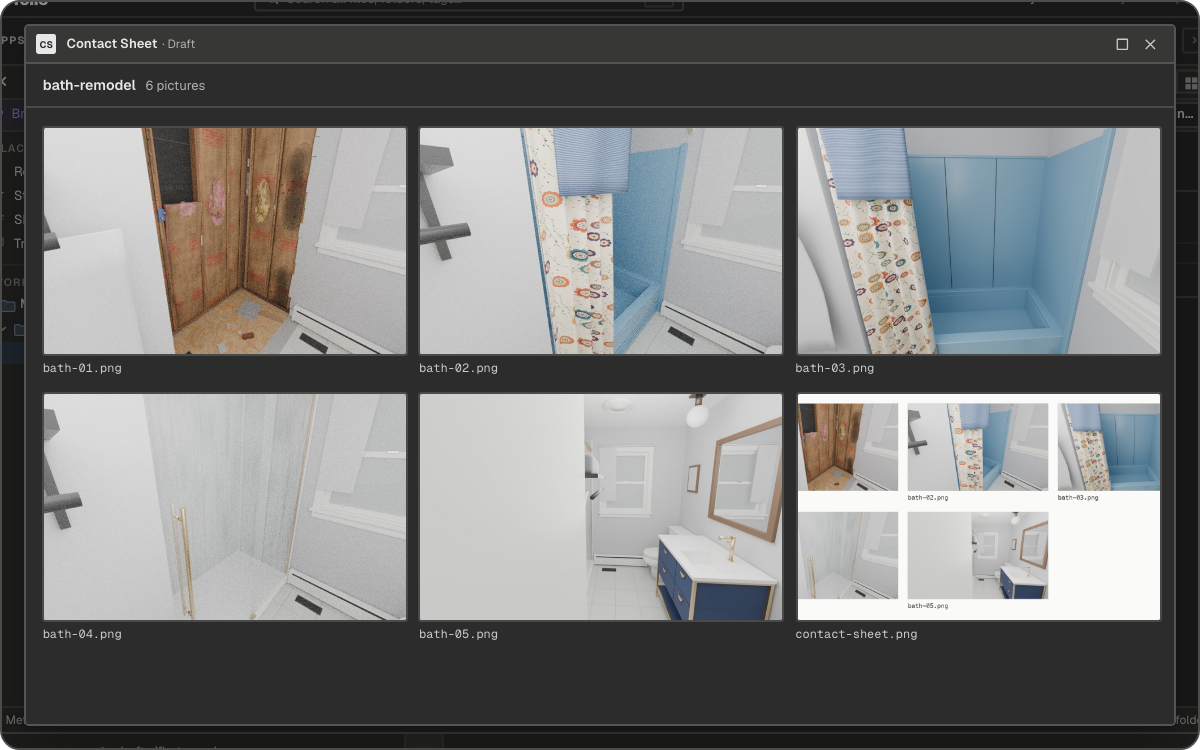
The app Contact Sheet, a draft, open in a window over the workspace. It shows the six pictures of bath-remodel in a grid, each with its file nameThe app Contact Sheet, a draft, open in a window over the workspace. It shows the six pictures of bath-remodel in a grid, each with its file name

To change the app, tell the agent what you want. To give the app to your team on main, see Create an app.

Where to go next

Choose the track that matches what you want to do with Folio next: